> ## Documentation Index
> Fetch the complete documentation index at: https://learn.catalogbuilderapp.com/llms.txt
> Use this file to discover all available pages before exploring further.
# Catalog Editor Overview
> Learn how the visual Catalog Editor works, explore the workspace panels, and discover the ways to share your digital flipbooks and PDFs.
The **Catalog Editor** is the core visual workspace in CatalogBuilderApp. It allows you to design, customize, organize, and publish stunning product catalogs and interactive digital flipbooks in real time.
 ***
## What is the Catalog Editor?
The Catalog Editor provides a live, interactive environment where what you see is exactly what your customers experience. As you add products, modify prices, or change layout configurations, the editor updates the canvas in real time.
Whether you are preparing a digital flipbook for mobile devices or a high-resolution PDF for printing, the editor handles layout calculations, typography scaling, and pagination automatically.
***
## Workspace Structure & How it Works
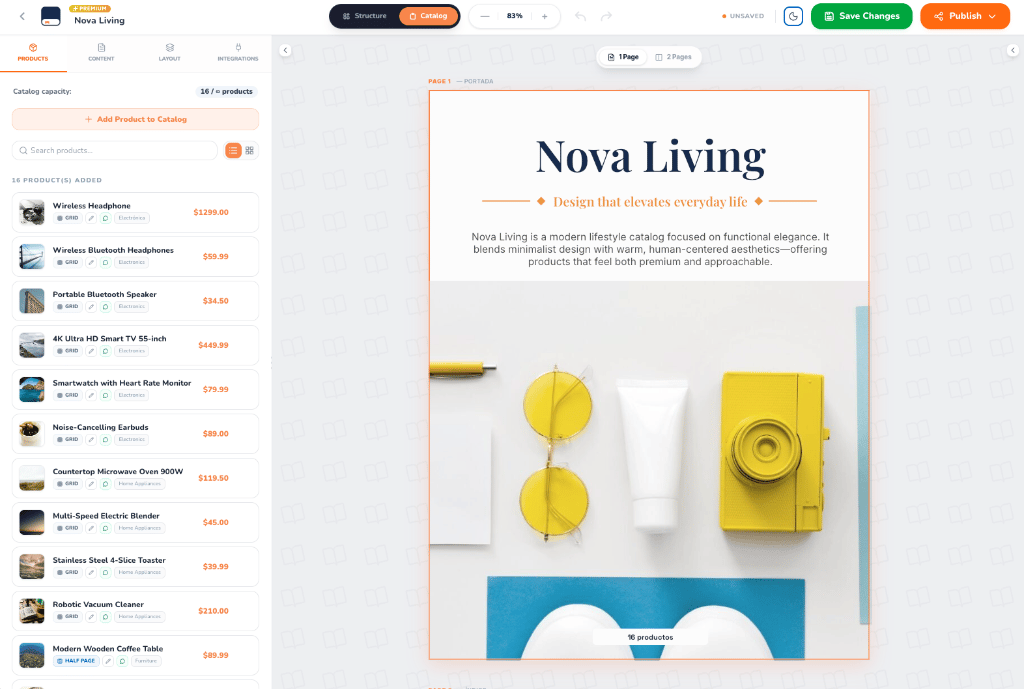
The editor interface is organized into three primary areas: the **Top Navigation Bar**, the **Left Sidebar Panel**, and the **Interactive Canvas**.
### 1. Top Navigation Bar
The top bar gives you instant access to global controls and project actions:
* **Breadcrumb & Catalog Title**: View your organization name, active catalog title, and tier badge (e.g., `PREMIUM`).
* **Editing Mode Switcher**:
* **Catalog Mode**: The default mode for managing catalog contents—assign products, adjust cover texts, configure contact details, and manage publishing settings.
* **Structure Mode**: Advanced mode to design repeating layout templates, product card geometries, header/footer elements, and master styling.
* **Canvas Zoom Controls**: Zoom out, zoom in, or view the current scale percentage (e.g., `83%`) to inspect fine details.
* **History (Undo / Redo)**: Quickly revert or reapply changes with single-click undo and redo buttons.
* **Save Status & Save Changes**: Monitor real-time status indicators (`UNSAVED` / `SAVED`) and save modifications with the green **Save Changes** button.
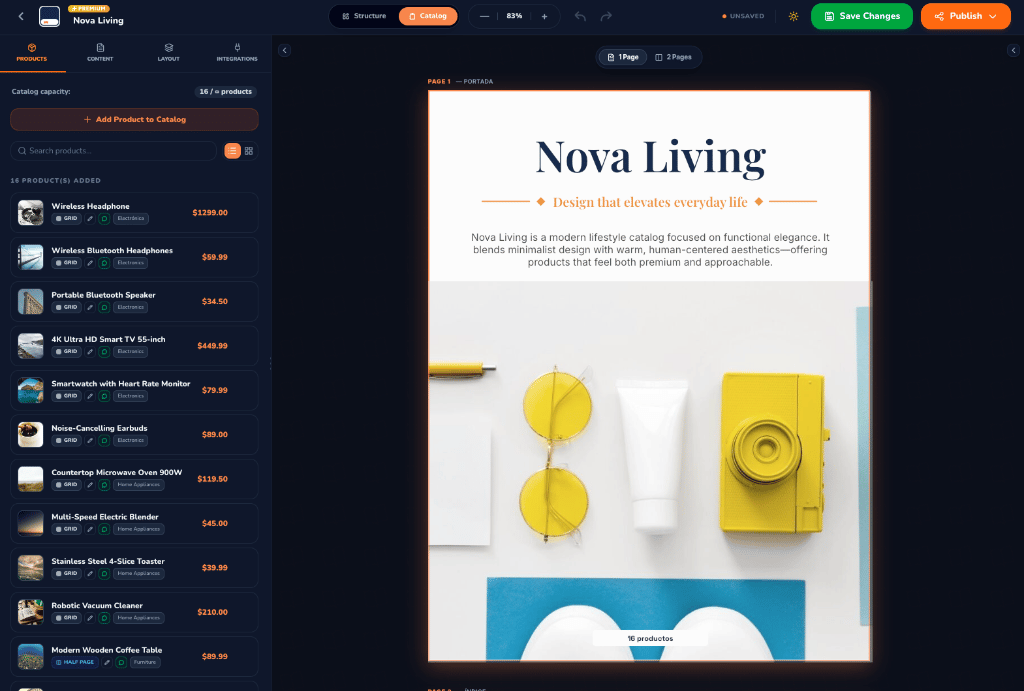
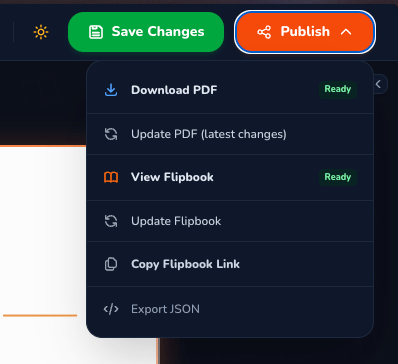
* **Dark / Light Mode Toggle**: Switch between an ultra-sleek dark interface and a crisp light theme with a single click.
* **Publish Button**: The primary orange action button that opens the publication and sharing menu.
### 2. Left Sidebar Panel
The left sidebar features 4 dedicated tabs tailored for streamlined catalog customization:
Manage your catalog's product inventory and display hierarchy:
* **Catalog Capacity**: Track active items against your plan limit (e.g., `16 / ∞ products`).
* **Add Product to Catalog**: Add individual items or bulk-import new products on the fly.
* **Search & View Filters**: Quickly find products by name or switch between list and grid views.
* **Product Cards**: Reorder products, inspect layout badges (`GRID`, `HALF PAGE`, `FULL PAGE`), edit prices, and view category tags.
Configure the overarching catalog identity and special pages:
* **Catalog Title & Slogan**: Set the main headline and memorable brand tagline.
* **Cover Description**: Add welcoming introductory copy for your catalog cover.
* **Cover Image Dropzone**: Upload, replace, or preview your high-resolution cover image.
* **Currency & Date**: Select currency code (`USD`, `EUR`, etc.), currency symbol position, and issue date.
* **Table of Contents (TOC)**: Toggle automated index page generation on or off.
* **Organization / Contact Page**: Enable the back cover page displaying your company's logo, address, phone, and social channels.
Fine-tune the visual aesthetics and presentation rules:
* **Design Themes**: Choose typography pairings, margin spacing, and color accents.
* **Product Grouping**: Group products automatically by category or keep a continuous flow.
* **Page Density**: Adjust how many products fit per page and manage layout balance.
Turn your catalog into an active sales channel:
* **WhatsApp Direct Ordering**: Enable the WhatsApp button to allow readers to message your team directly.
* **Phone Number & Country Code**: Set your business customer support number.
* **Custom Message Template**: Personalize the automated message pre-filled when customers click on a product (e.g., `Hello, I am interested in [product.name]`).
### 3. Interactive Canvas
The central canvas renders your catalog with pixel precision:
* **Page-by-Page Navigation**: Jump seamlessly between pages using the canvas navigation arrows or pagination indicators.
* **View Modes (`1 Page` / `2 Pages`)**: Switch between single-page view or double-page spread (magazine view) to see how spreads align.
* **Live Section Headers**: Clearly identified page markers such as `PAGE 1 — PORTADA` and `PAGE 2 — ÍNDICE`.
***
## Ways to Share Your Catalog
Once your catalog is ready, click the orange **Publish** button in the top navigation bar to access sharing and export options.
***
## What is the Catalog Editor?
The Catalog Editor provides a live, interactive environment where what you see is exactly what your customers experience. As you add products, modify prices, or change layout configurations, the editor updates the canvas in real time.
Whether you are preparing a digital flipbook for mobile devices or a high-resolution PDF for printing, the editor handles layout calculations, typography scaling, and pagination automatically.
***
## Workspace Structure & How it Works
The editor interface is organized into three primary areas: the **Top Navigation Bar**, the **Left Sidebar Panel**, and the **Interactive Canvas**.
### 1. Top Navigation Bar
The top bar gives you instant access to global controls and project actions:
* **Breadcrumb & Catalog Title**: View your organization name, active catalog title, and tier badge (e.g., `PREMIUM`).
* **Editing Mode Switcher**:
* **Catalog Mode**: The default mode for managing catalog contents—assign products, adjust cover texts, configure contact details, and manage publishing settings.
* **Structure Mode**: Advanced mode to design repeating layout templates, product card geometries, header/footer elements, and master styling.
* **Canvas Zoom Controls**: Zoom out, zoom in, or view the current scale percentage (e.g., `83%`) to inspect fine details.
* **History (Undo / Redo)**: Quickly revert or reapply changes with single-click undo and redo buttons.
* **Save Status & Save Changes**: Monitor real-time status indicators (`UNSAVED` / `SAVED`) and save modifications with the green **Save Changes** button.
* **Dark / Light Mode Toggle**: Switch between an ultra-sleek dark interface and a crisp light theme with a single click.
* **Publish Button**: The primary orange action button that opens the publication and sharing menu.
### 2. Left Sidebar Panel
The left sidebar features 4 dedicated tabs tailored for streamlined catalog customization:
Manage your catalog's product inventory and display hierarchy:
* **Catalog Capacity**: Track active items against your plan limit (e.g., `16 / ∞ products`).
* **Add Product to Catalog**: Add individual items or bulk-import new products on the fly.
* **Search & View Filters**: Quickly find products by name or switch between list and grid views.
* **Product Cards**: Reorder products, inspect layout badges (`GRID`, `HALF PAGE`, `FULL PAGE`), edit prices, and view category tags.
Configure the overarching catalog identity and special pages:
* **Catalog Title & Slogan**: Set the main headline and memorable brand tagline.
* **Cover Description**: Add welcoming introductory copy for your catalog cover.
* **Cover Image Dropzone**: Upload, replace, or preview your high-resolution cover image.
* **Currency & Date**: Select currency code (`USD`, `EUR`, etc.), currency symbol position, and issue date.
* **Table of Contents (TOC)**: Toggle automated index page generation on or off.
* **Organization / Contact Page**: Enable the back cover page displaying your company's logo, address, phone, and social channels.
Fine-tune the visual aesthetics and presentation rules:
* **Design Themes**: Choose typography pairings, margin spacing, and color accents.
* **Product Grouping**: Group products automatically by category or keep a continuous flow.
* **Page Density**: Adjust how many products fit per page and manage layout balance.
Turn your catalog into an active sales channel:
* **WhatsApp Direct Ordering**: Enable the WhatsApp button to allow readers to message your team directly.
* **Phone Number & Country Code**: Set your business customer support number.
* **Custom Message Template**: Personalize the automated message pre-filled when customers click on a product (e.g., `Hello, I am interested in [product.name]`).
### 3. Interactive Canvas
The central canvas renders your catalog with pixel precision:
* **Page-by-Page Navigation**: Jump seamlessly between pages using the canvas navigation arrows or pagination indicators.
* **View Modes (`1 Page` / `2 Pages`)**: Switch between single-page view or double-page spread (magazine view) to see how spreads align.
* **Live Section Headers**: Clearly identified page markers such as `PAGE 1 — PORTADA` and `PAGE 2 — ÍNDICE`.
***
## Ways to Share Your Catalog
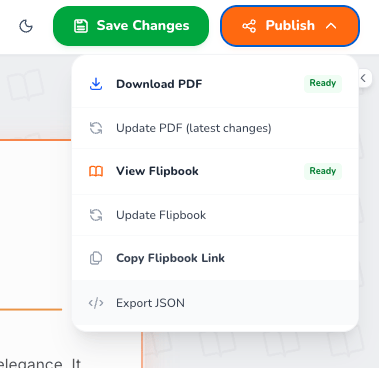
Once your catalog is ready, click the orange **Publish** button in the top navigation bar to access sharing and export options.
 **⭐ Dedicated Flipbook URL**:
Every catalog in CatalogBuilderApp has its own **unique, permanent Flipbook URL**. Whenever you update products, prices, or images, the URL remains the same—your customers always see the most up-to-date version without needing to download new files or receive new links!
### Available Publishing & Sharing Options
Opens the live interactive digital flipbook in a new tab. Features realistic 3D page turns, full mobile responsiveness, pinch-to-zoom, and smooth navigation.
Copies the unique public URL to your clipboard. Perfect for sharing via WhatsApp, embedding in social media profiles, sending in marketing emails, or linking to QR codes.
Downloads the high-resolution vector PDF version of your catalog, fully optimized for printing or offline document distribution.
Re-renders and updates the existing PDF document with any recent edits, new products, or updated pricing saved in the editor.
Synchronizes your saved catalog changes directly to the live Flipbook URL in seconds, keeping your digital publication continuously updated.
Exports the complete catalog structure, product data, and layout parameters as a clean JSON file for backups or developer integrations.
This documentation is built and hosted on [Mintlify](https://mintlify.com), a developer documentation platform.
**⭐ Dedicated Flipbook URL**:
Every catalog in CatalogBuilderApp has its own **unique, permanent Flipbook URL**. Whenever you update products, prices, or images, the URL remains the same—your customers always see the most up-to-date version without needing to download new files or receive new links!
### Available Publishing & Sharing Options
Opens the live interactive digital flipbook in a new tab. Features realistic 3D page turns, full mobile responsiveness, pinch-to-zoom, and smooth navigation.
Copies the unique public URL to your clipboard. Perfect for sharing via WhatsApp, embedding in social media profiles, sending in marketing emails, or linking to QR codes.
Downloads the high-resolution vector PDF version of your catalog, fully optimized for printing or offline document distribution.
Re-renders and updates the existing PDF document with any recent edits, new products, or updated pricing saved in the editor.
Synchronizes your saved catalog changes directly to the live Flipbook URL in seconds, keeping your digital publication continuously updated.
Exports the complete catalog structure, product data, and layout parameters as a clean JSON file for backups or developer integrations.
This documentation is built and hosted on [Mintlify](https://mintlify.com), a developer documentation platform.