
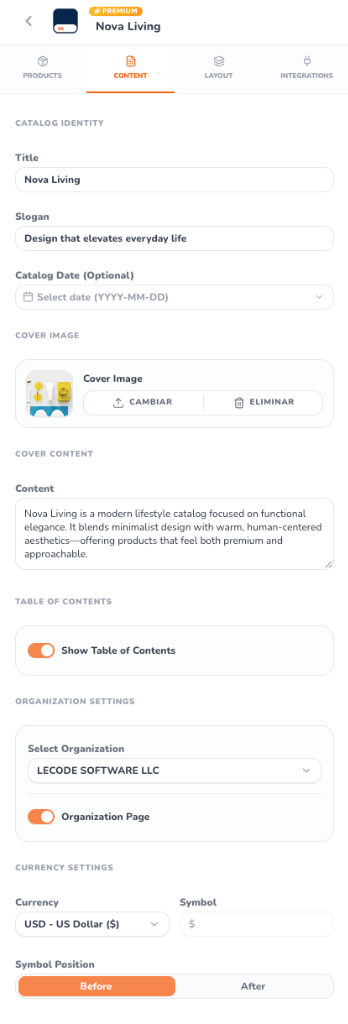
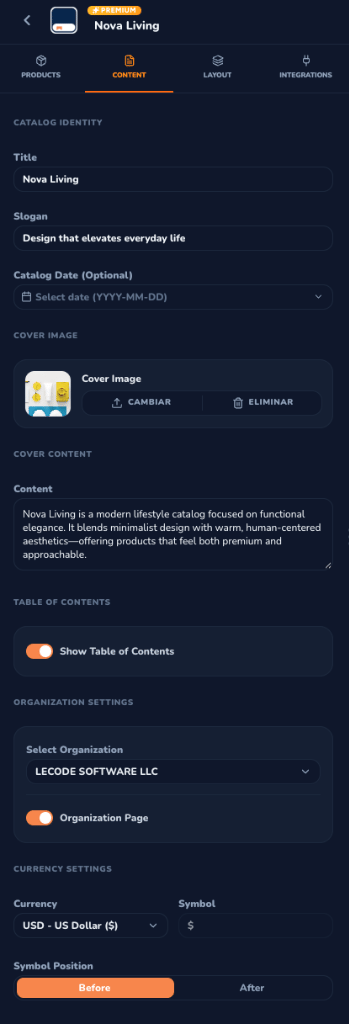
Content Tab in the Catalog Editor — Light & Dark Modes
Catalog Identity
Set the foundational brand headlines that define your publication:- Title: The primary name of your catalog (e.g.,
Nova Living). This title appears prominently on the front cover, header navigation, and PDF title metadata. - Slogan: A brand tagline or collection theme (e.g.,
Design that elevates everyday life) displayed right below the catalog title. - Catalog Date (Optional): An interactive date selector (
YYYY-MM-DD) to timestamp the edition, seasonal campaign (e.g., Spring/Summer), or promotional validity period.
Cover Image
The cover image establishes the visual tone for the entire publication:- Live Thumbnail: Displays a preview of your active cover photo.
- Upload / Replace (
Cambiar): Upload high-resolution cover artwork (supports JPG, PNG, and WebP up to 50MB). The editor automatically scales and positions the image to fit your chosen template’s cover bleed. - Remove (
Eliminar): Clears the custom cover image, allowing you to use a minimalist typographic layout or color gradient background.
Cover Content
Provide an inviting narrative for readers opening your catalog:- Content Area: A multi-line textarea for your introduction, brand manifesto, or curated product collection message.
- Live Synchronization: As you type, the cover layout on the central canvas updates instantly.
Table of Contents
CatalogBuilderApp takes the hassle out of manual pagination:- Show Table of Contents Switch: Toggle automated index generation on or off with a single click.
- Dynamic Categorization: When enabled, the editor inserts a beautifully formatted PAGE 2 — ÍNDICE listing your product categories and chapters alongside their live page numbers.
- Zero-Maintenance Pagination: Whenever you add, remove, or rearrange products, the Table of Contents updates its page numbers automatically.
Organization Settings & Contact Page
Turn the final page of your catalog into a conversion driver:- Select Organization: Associate the catalog with one of your registered business profiles.
- Organization Page Switch: Enable the automated back cover / contact page.
- Automatic Contact Layout: Renders your organization’s official logo, registered business name, physical address, support phone numbers, website, and social media channels.
Currency Settings
Standardize price formatting across all product cards and grid layouts:Currency Selector
Choose from popular global currencies including USD (), MXN ($), HNL (L.), or select CUSTOM to define your own national currency code.
Custom Symbol
When CUSTOM currency is selected, define any symbol or abbreviation to match regional accounting standards.
Symbol Position
Toggle between Before (e.g.,
$1,299.00) or After (e.g., 1.299,00 €) via the segmented control to adhere to your market’s typographical conventions.Unified Price Formatting
Eliminates inconsistencies by formatting prices across all product presets, half-page spreads, and full-page features simultaneously.