
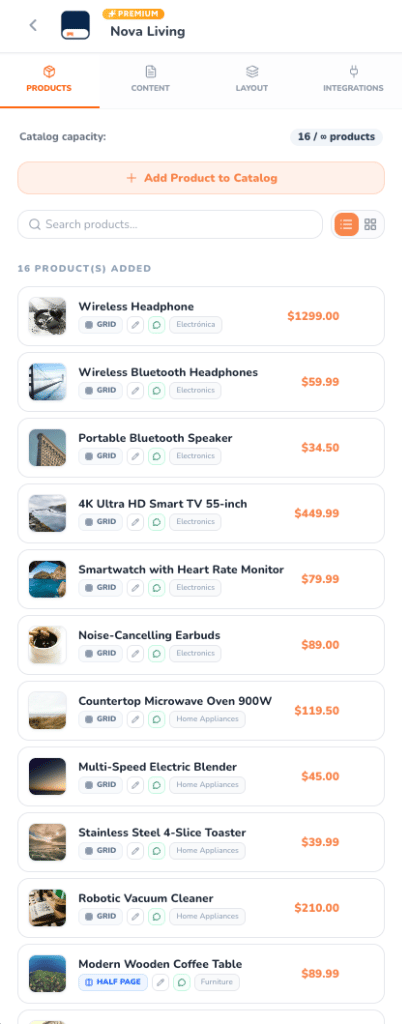
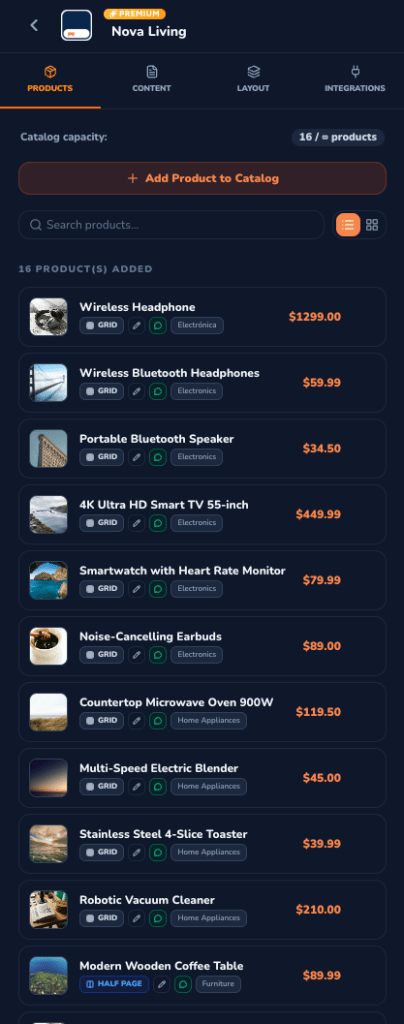
Products Tab in the Catalog Editor — Light & Dark Modes
Overview & Catalog Capacity
At the top of the Products Tab, you will find vital indicators and quick actions to manage catalog scale:- Capacity Counter: Displays the number of products currently added versus your plan limit (e.g.,
16 / ∞ productsfor unlimited plans,16 / 100for Plus plans, or5 / 5 (Gratis)for Free catalogs). - Convert to Premium Banner: If you are editing a Free catalog and your account has Premium credits, a banner allows you to upgrade the catalog with one click—instantly unlocking up to 100 products (or unlimited on Business plans), removing watermarks, and enabling HD rendering.
- Add Product to Catalog: The prominent button to launch the selection sheet and import inventory into this catalog.
Adding Products to the Catalog
Clicking + Add Product to Catalog opens the full-screen inventory drawer, allowing you to select and configure products in bulk.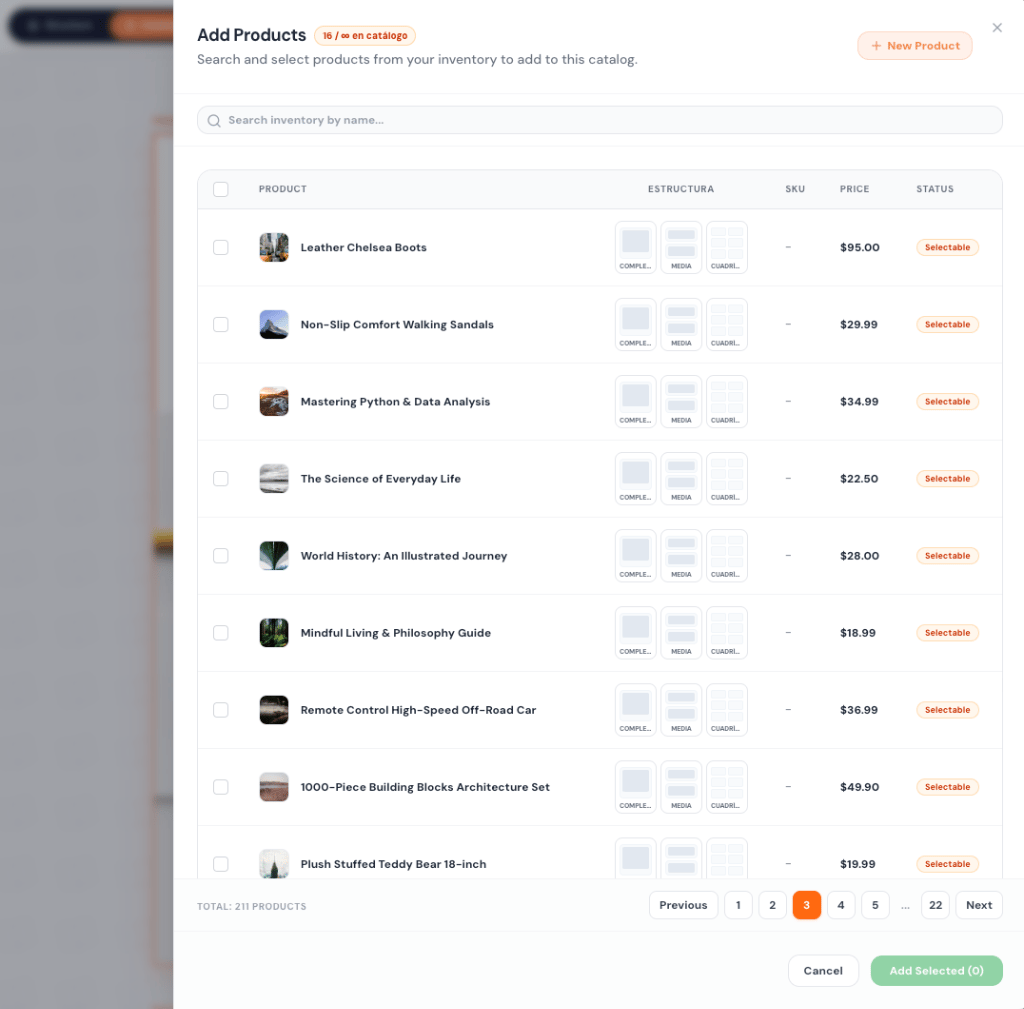
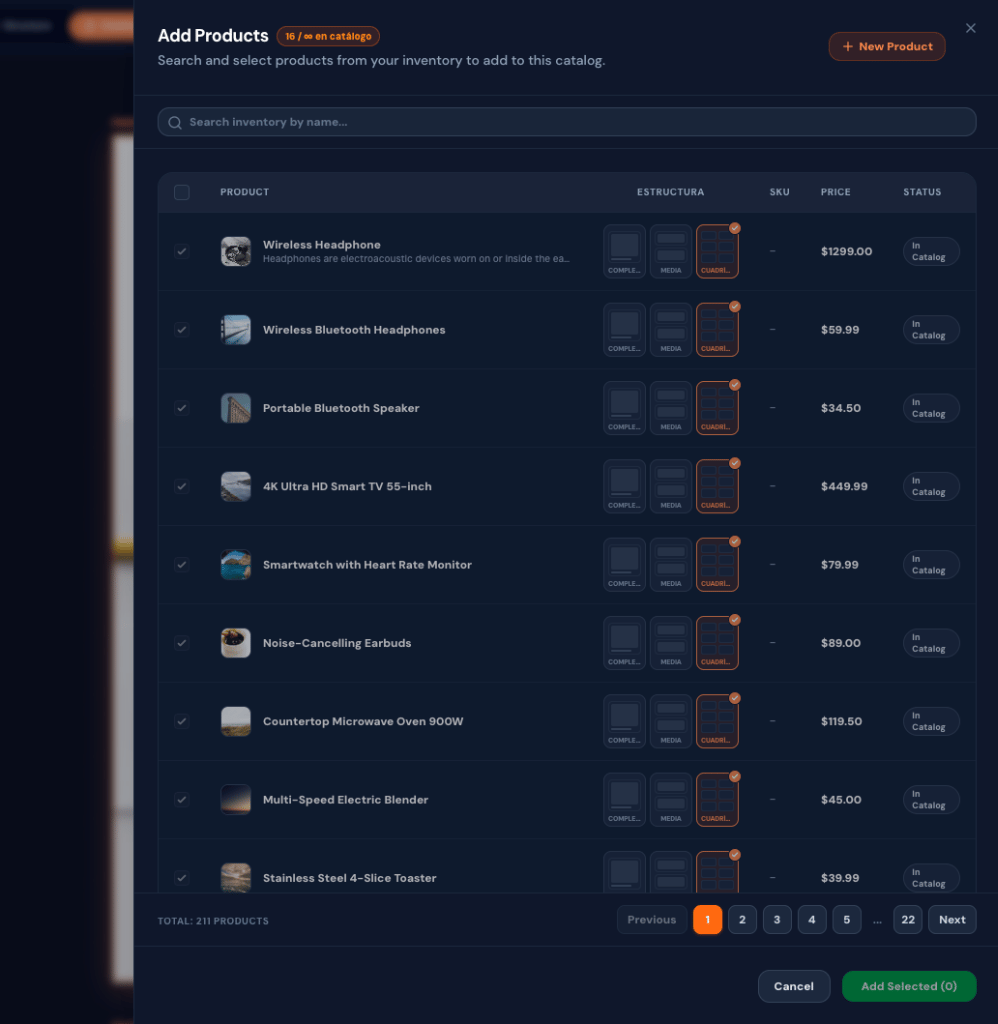
Add Products to Catalog Modal Sheet — Light & Dark Modes
Key Features of the Add Products Sheet
- Real-time Inventory Search: Quickly find products by name or SKU across your entire organization’s inventory.
- Quick Product Creation: Click + New Product to create a brand-new item directly from the sheet without leaving the editor.
- Layout Structure Selection: Assign the layout prominence for each selected item before adding it:
- COMPLETA (Full Page / 1st Priority): Product occupies an entire featured page.
- MEDIA (Half Page / 2nd Priority): Product occupies a half-page spread.
- CUADRÍCULA (Grid / 3rd Priority): Standard grid arrangement for balanced multi-product pages.
- Inventory Status Badges: Identifies which items are already attached (
In Catalog) or available (Selectable). - Pagination & Counter: Easily browse hundreds of products with numerical pagination and a total items count (e.g.,
TOTAL: 211 PRODUCTS). - Batch Confirmation: The green Add Selected (X) button attaches all chosen items to your catalog in one operation.
Searching & Browsing Products
Within the sidebar tab, navigate your active catalog items effortlessly:- Live Filter: Search among attached products by title or SKU code.
- View Modes Toggle:
- List View: A compact vertical list displaying thumbnails, product names, layout badges, price, and actions.
- Grid View: A two-column card view showcasing larger square product images, ideal for visual reviews.
Product Card Actions
Every product in your catalog features a suite of quick-action controls:Change Layout Priority
Click the priority badge (
GRID, HALF PAGE, or FULL PAGE) to open the Priority Sheet. Alter how much visual space the product receives in the automated layout without recreating the page.Edit Product Details
Click the pencil icon to open the Product Edit Sheet. Update the product title, SKU, price, category, description, and gallery images live. Changes reflect immediately in the catalog.
Configure Action Links
Click the link icon to configure interactive behavior when customers tap or click the product in the digital Flipbook:
- Catalog Default: Inherits the catalog’s global WhatsApp order button or company URL.
- Custom WhatsApp: Assign a specific sales rep number or personalized message template for this item.
- External Web Link: Direct readers to a specific product page on your e-commerce store (
https://...). - Disabled: Disables clickable links on this product.
Remove from Catalog
Hover over the product row and click the ✕ button to detach the product from this catalog. The product remains safely stored in your organization’s global inventory.